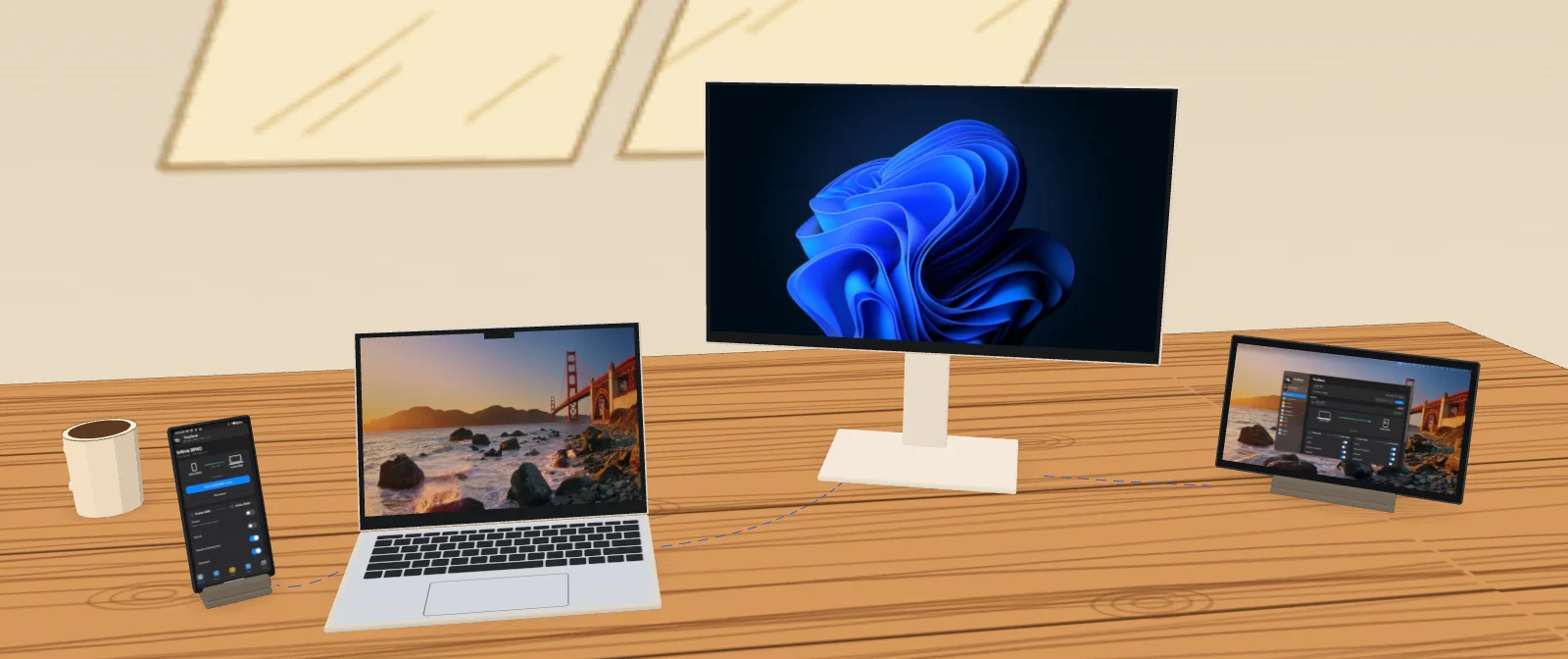
Your Mac, Windows PC, Linux box and Android phone, working together like they were made for it. One mouse and keyboard. Files that just fly across. Your phone's calls and texts, right on your computer.
Your devices are great at their own jobs and terrible at working together.
Two keyboards, two mice. One very confused person.Emailing yourself a file. Again. To the computer right next to you.The phone rings… somewhere. Under a cushion, in another room, out of battery.
TwinDesk fixes all of that.
Install it on each device, pair once, and they work as one desk. Here's how a day with it looks.
Chapter 1 · PC ↔ PC
Two computers, one desk
A Mac and a Windows PC side by side. Or two PCs, two Macs, Linux and anything. Scroll along.
NotesWed 9:41
Mockup.png
Notes
Meet at 6, at the café
Bring the slides
Paint · from Inuka— ▢ ✕
Keynote
Q4 plan
KeynoteMac's 2nd screen
Keynote
Q4 plan
Report.docx
Notepad— ▢ ✕
Typed with the Mac's keyboard
Chat— ▢ ✕
Where do we meet?
Meet at 6, at the café
Mockup.png
Receiving Mockup.png
Mockup.pngfrom Inukas-MBA · Saved to Desktop
⌘CCtrl Vtap tap tap
One mouse and keyboard
Push the pointer off the edge. Keep working on the other computer.
No second mouse, no switch box. The pointer slides from the Mac onto the PC like they're one big screen. Trackpad gestures carry over, and a double-tap of the hotkey brings everything home.
Your keyboard follows
Type on the PC with the Mac's keyboard.
Wherever the pointer is, that's where your keys go. Shortcuts too, with Ctrl and ⌘ swapped if you like.
Drag and drop files
Grab a file, carry it across, drop it anywhere.
Drag files across the screen edge and they land where you let go, with live progress on both sides. Or copy with ⌃⌥C and paste with ⌃⌥V. Big folder? Share it as a network drive.
One clipboard
Copy on one, paste on the other.
Instantly, or when you switch over. Password manager entries are skipped, and a Recent list keeps the last few things you copied.
The other computer's apps
A Windows app on your Mac, in a window of its own.
No full remote desktop. Just the app you need, next to yours, with its own Dock icon or Start-menu pin.
A second screen
The PC becomes your Mac's second monitor.
Extend with a real virtual display, or mirror. Drag a window across and keep going. Low-latency video with Fastest and Smooth modes, and optional frame generation.
Shared folders A folder on one shows up as a drive on the other.
Terminalssh twindesk opens a shell on the other side, no password.
Sound Hear one computer on the other, either way.
Notifications One computer's alerts, native on the other.
Wake-on-LAN Wake a sleeping computer from the other one.
Switch & take over Many devices paired? Move the session in one click.
Gestures Spaces swipes, pinch to zoom and show desktop carry over.
Encrypted Paired once, then a private TLS link. Nothing in between.
Chapter 2 · PC ↔ Android
Your phone joins the desk
Most phone links stop at notifications. In TwinDesk your Android phone or tablet is a full peer: its calls, texts, photos, files, screen and apps, on your Mac, Windows or Linux computer.
TwinDeskWed 9:41
TwinDeskPixel 8 · 6 ms
Pixel 86 ms · 82%
Overview
Calls
Messages1
Photos
Phone Files
Share screen
Cursor
Clipboard
Notifications
Overview
Everything shared with your phone, at a glance.
PPixel 8Nearby · Wi-FiConnect
IInukaWindows PC · pairedSwitch
Pair with Pixel 8?482 913Check the phone shows the same code.LaterAllow
Boarding pass.pdf from Pixel 8Saved to Downloads · Open
Maya Fernando is callingAnswer · Decline
KeynoteExtended
Slides
Q4 plan
9:41▮▮ 82%
Pair with Inukas-MBA?482 913Pair
Maya FernandoIncoming callAnswered on Inukas-MBA
Maya FernandoDinner on Friday? 🍝
Boarding pass.pdf
ShareSend to computerCopy to computerMessagesGmail
Calculator and Notes are on Inukas-MBA
codes match ✓“Hi Maya!”
Pair once
Open TwinDesk on both. Check the code. Done.
The phone shows up under Nearby on Wi-Fi or Bluetooth. Plug in a USB cable instead and it's even simpler: click Allow, no code. From then on they connect by themselves.
New · Calls
The phone rings. Answer it on your computer.
See who's calling, then Answer, Decline, Mute and End. With Bluetooth, your computer becomes the phone's headset, so you talk and listen right there. A dial pad, your contacts and the call history are on the Calls page.
New · Messages
Read and reply to texts with a real keyboard.
Every conversation, pictures included, new ones as they arrive, and a count in the sidebar. Start a new one by number.
New · Photos
Your camera roll, on the big screen.
Browse photos, videos and screenshots, open any of them big, and save one or a dozen to the computer. No cable, no cloud.
Files, like AirDrop
Share from any app, it lands on your computer.
Pick Send to computer in Android's share menu, or drag files onto the phone from the computer. Phone Files browses the phone's whole storage, and shared folders work both ways: the phone in Finder or Explorer, a computer folder in the phone's Files app.
Screen, apps and a second monitor
Phone apps in windows, a tablet as an extra screen.
Open single Android apps in windows of their own, next to your desktop apps, and control them with your mouse and keyboard. Prop up a tablet and it becomes a second monitor: Extend or Mirror, with touch as the mouse.
Clipboard sync Copy on the phone, paste on the computer. A Quick Settings tile sends it in one tap.
Notifications The phone's alerts as native ones on the computer, and back. Hide the text if you like.
Mouse onto the phone Push the pointer past the edge and type in any Android app. No developer options needed.
Phone as a drive Mount it in Finder, Explorer or your Linux file manager.
Sound both ways The phone's sound on the computer, the computer's on the phone.
Made for Android Quick Settings tiles, home screen shortcuts, a tablet layout with a sidebar.
Chapter 3 · new in 2.1
Works anywhere. Even with no Wi-Fi.
On a train, in a café whose Wi-Fi blocks devices, or with no network at all. TwinDesk picks the best link by itself, and moves you when things change.
Same Wi-Fi
Home or office. Everything works, at full speed.
3 ms · Wi-Fi
ᛒ
Bluetooth
No shared network? Nearby devices connect over Bluetooth LE by themselves.
38 ms · Bluetooth
⚡
Wi-Fi Direct
Sending a big file or a screen? A fast direct link comes up just for that, then goes.
Temporary Wi-Fi Direct
Phone hotspot
One click: the phone shares its hotspot and the computer joins, password remembered.
Hotspot
USB cable
Plug the phone in for the lowest latency. Unplug, and it's back on wireless.
<10 ms · USB
What works over what
Same Wi-Fi
USB cable
Bluetooth
+ Wi-Fi Direct
Mouse, keyboard, clipboard, notifications
✓
✓
✓
✓
Calls and texts
✓
✓
✓
✓
Screens, apps, files, photos
✓
✓
moves to Wi-Fi Direct
✓
Up and running in two minutes
1
Download
Get TwinDesk for each computer and your phone. It's free.
2
Open it on both
They find each other on Wi-Fi, over Bluetooth, or on a USB cable.
3
Pair once
Compare a code (on a cable, just click Allow). After that they connect by themselves.
For the phone's screen and apps in windows, TwinDesk walks you through Android's wireless debugging once. Files, clipboard, notifications, calls, texts, photos and mouse and keyboard work without it.
100% local
Your desk stays yours.
TwinDesk only talks to devices you've paired with: directly, over your own network, Bluetooth, a direct Wi-Fi link or a cable. No accounts, no telemetry, no cloud relay. Your calls, texts and photos go straight from the phone to your computer and nowhere else. The only internet request is an update check against GitHub, and you can turn it off.
Get TwinDesk
Free and open source. Install it on every device you want on your desk.
Each computer runs an Electron app for the window, pairing, the link and the state machines. Next to it runs a small native helper (Swift on macOS, C# on Windows, C on Linux) for what the OS keeps to itself: capturing and injecting input, virtual displays, gestures, window capture and native drag and drop. The Android app is Kotlin and Jetpack Compose; the computers drive the phone's screen through adb and scrcpy's server.
The link between two devices is one TLS session wherever it runs: the local network, a phone's USB cable, or Bluetooth LE (a GATT pipe of TwinDesk's own). When a Bluetooth session needs bandwidth, TwinDesk brings up a Wi-Fi Direct group or joins the phone's hotspot, moves the session onto it, and takes it down again. Ports: TCP 47800 (control) and UDP 47801 (discovery), on your local network only.
Build it yourself
You need Node.js 18+ on every platform. Full steps, Android included, are in the README.
macOS 13 Ventura or later
xcode-select --install
cd mac
npm install
npm run build:helper
npm start
Windows 10 / 11
cd windows
npm install
npm run build:helper
npm start
Linux (X11 or Wayland)
sudo apt install build-essential libx11-dev \
  libxi-dev libxtst-dev libxrandr-dev libxfixes-dev
cd linux
npm install
npm run build:helper
npm start
 TwinDesk